
How to Navigate the Child Care Finder Provider Portal
This how-to guide gives step by step instructions on how to use the Child Care Finder Provider Portal. The purpose of this guide is to support providers navigating their own access, and for use by others who are supporting providers with technical assistance.
This guide is meant to walk users through the available areas within the Child Care Finder interface. It isn’t necessary for each user to follow each one of these steps to achieve any particular goal, but serves as a general walk-through to introduce what is possible. This guide will highlight the main areas within the portal: the Menu to view policies and resources, and the options to view and update your provider profile.
Child Care Provider Portal

1. This page is called the Landing Page. After logging in, you’ll land here, then you can
Click on the menu icon (which will show your initials) in the upper right hand corner
of the screen to view the menu of options.
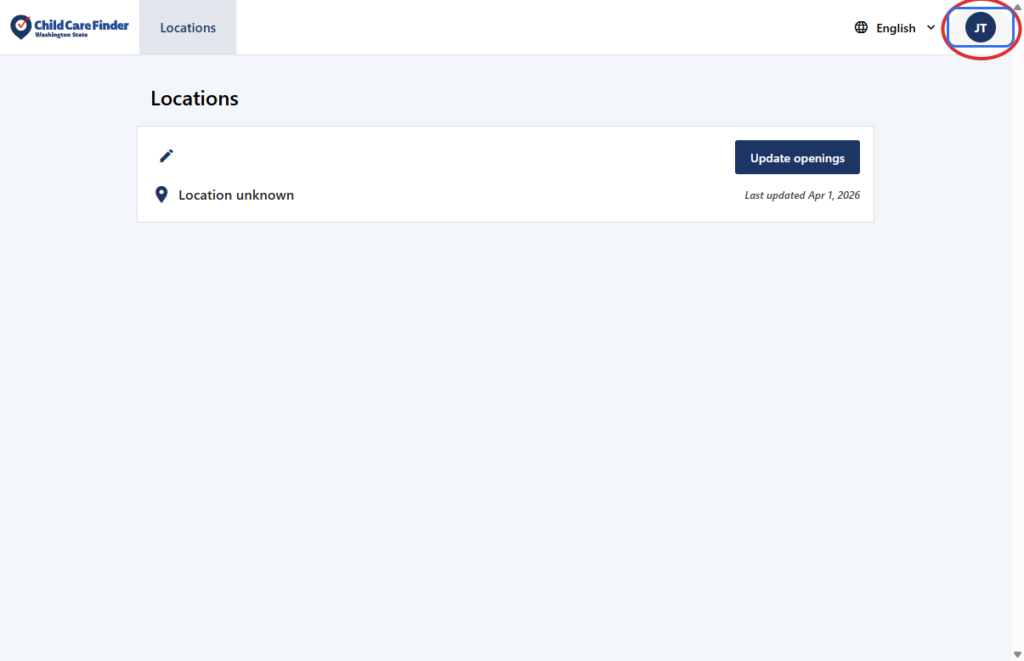
2. Click on Account to see what’s on the Account page
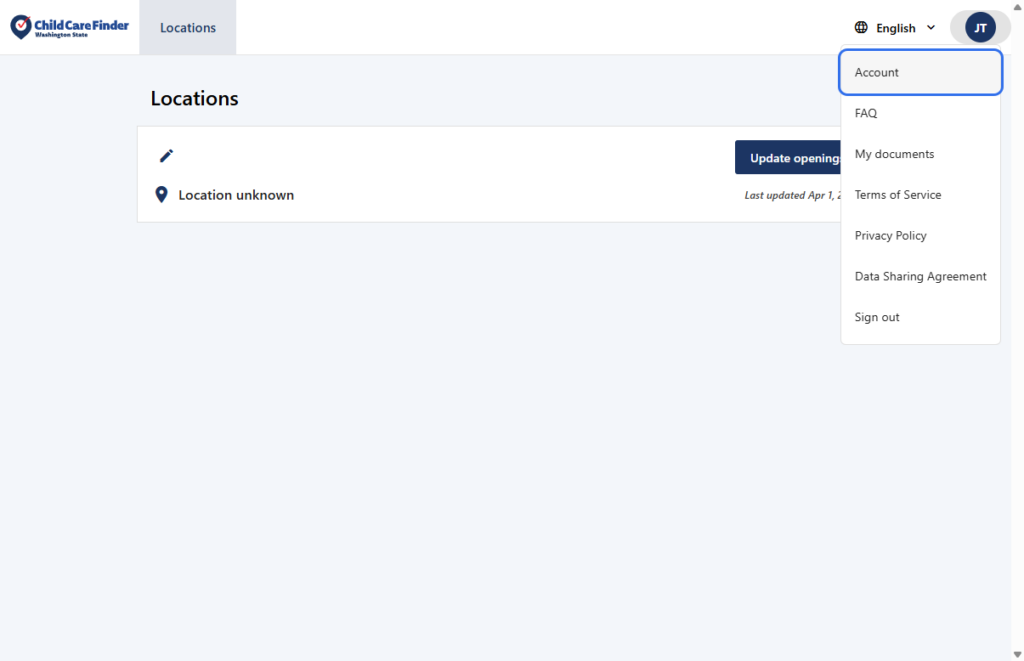
3. This is the information you’ll see on the Account page. The information here is separate from the provider listing, and is hidden from view from anyone (families, other providers, etc.), and doesn’t need to be updated.
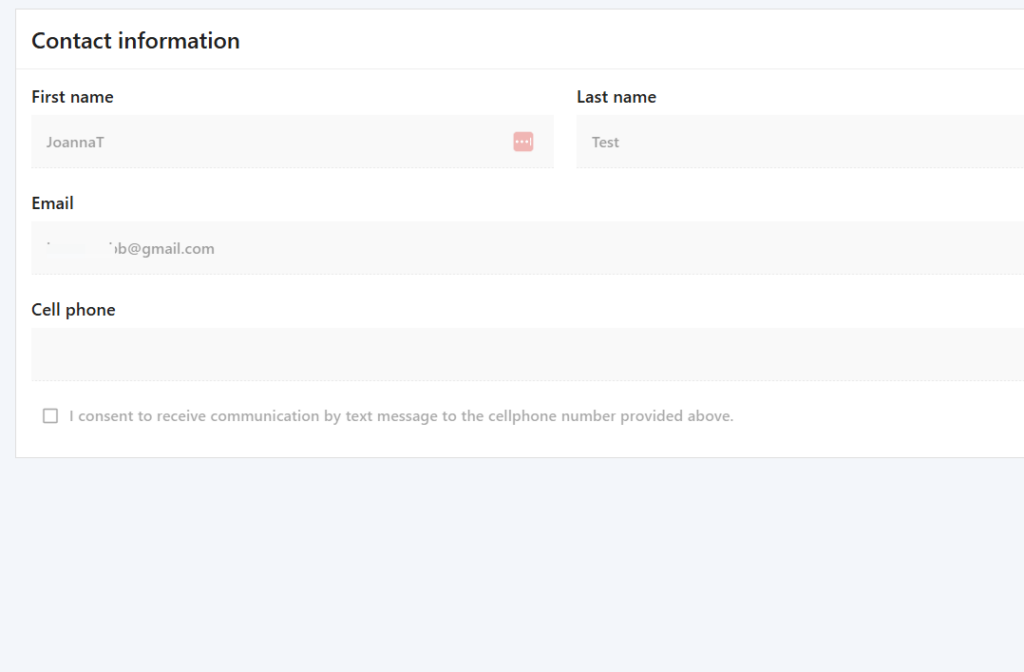
4. Click on FAQ to see the Provider Resource Page that includes video guides, glossaries, and other resources.
You can also click “Terms of Service” and “Privacy Policy” to bring you to the policies by the host technology partner, BridgeCare. The “Data Sharing Agreement” brings you to the Data Sharing Agreement of Child Care Aware of Washington. By using the Child Care Finder portal, you’re agreeing to these policies, and they’re available to review any time.
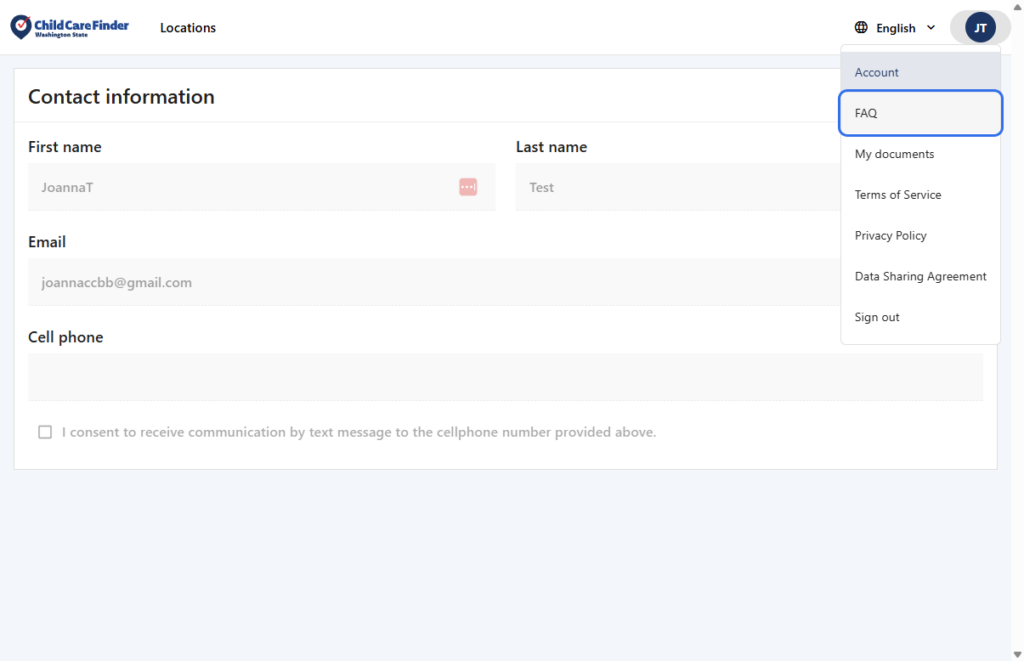
5. Click on the “English” dropdown to Change language of the portal. You can choose from 7 languages in that dropdown.
The languages offered are: English, Spanish, Somali, Chinese (Simplified), Arabic, Russian, and Ukrainian
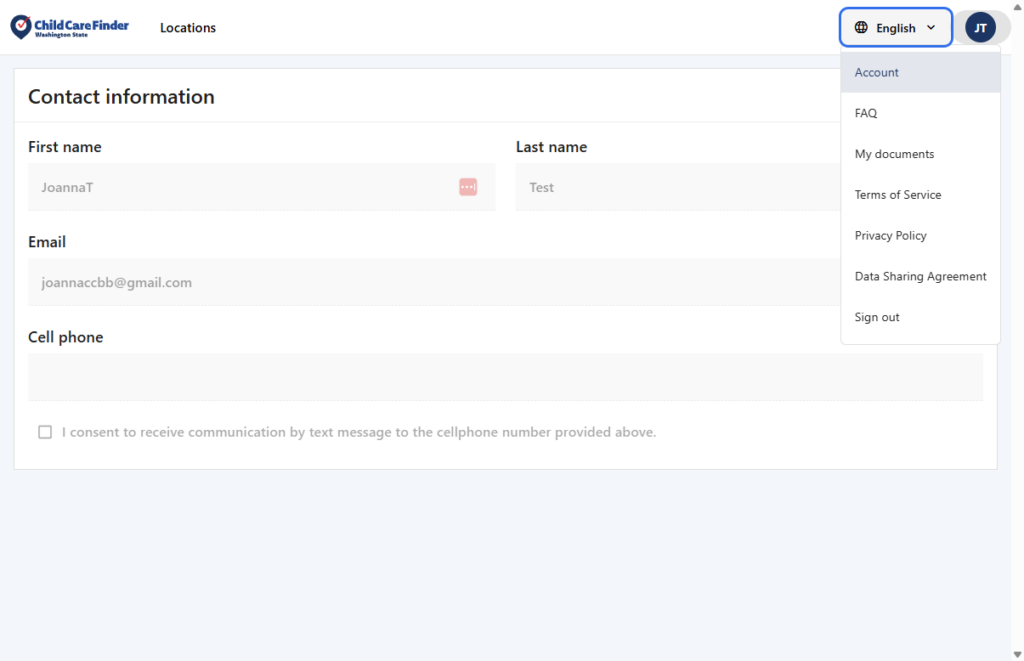
6. To return to the landing page at any time, Click on the Locations button, which is at the top of every page.
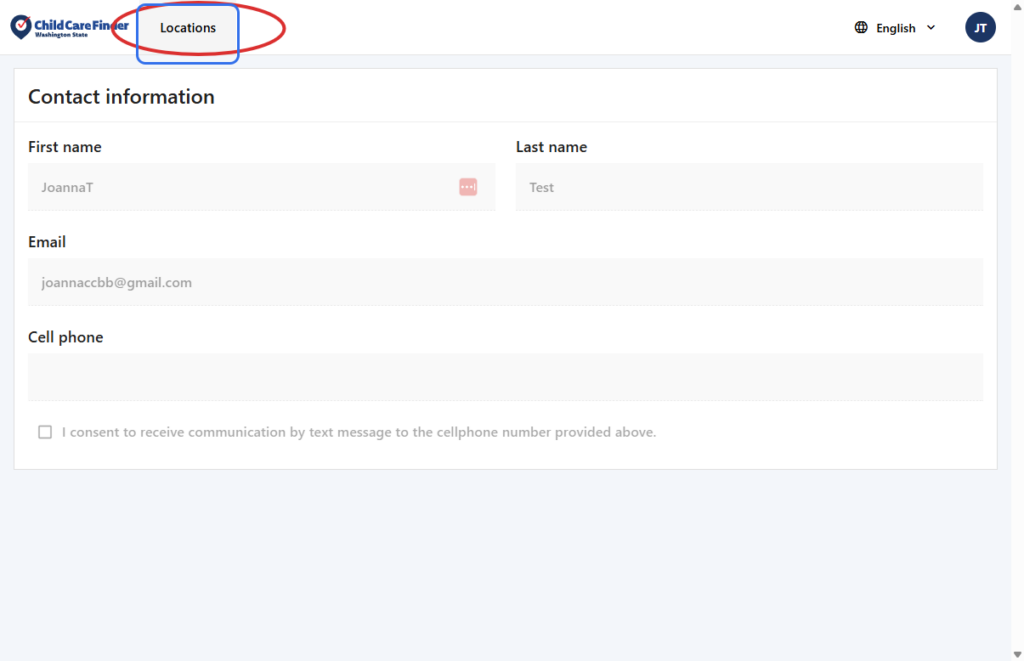
7. To quickly update or add Openings, Click on the Update openings button on any provider location.
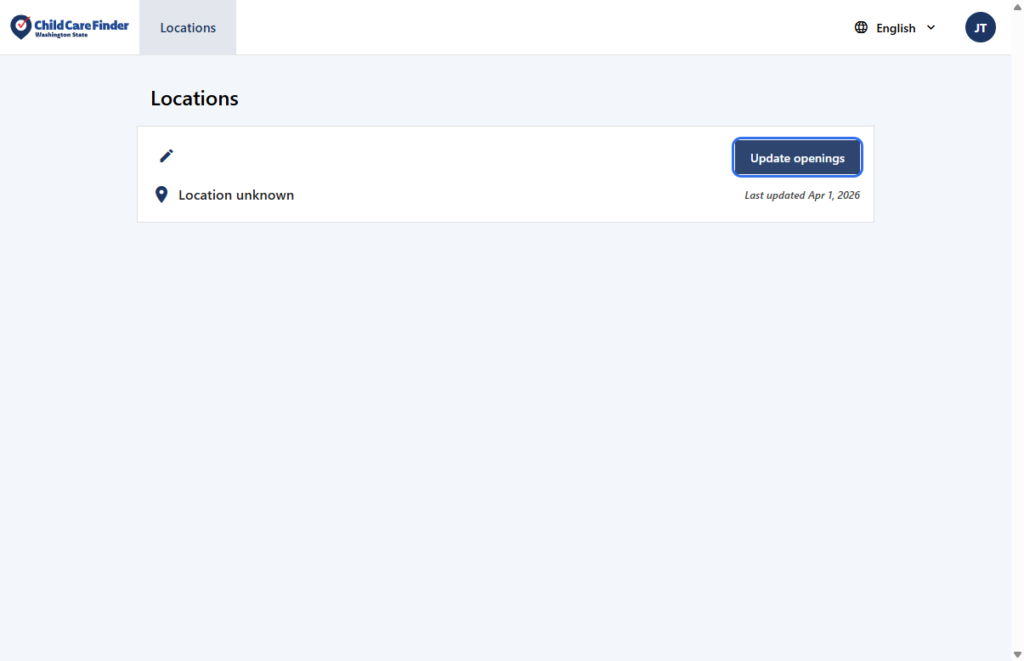
8. Click on Edit profile to enter into the full profile of each provider location that allows you to view, update, or add information that will be viewable by families.
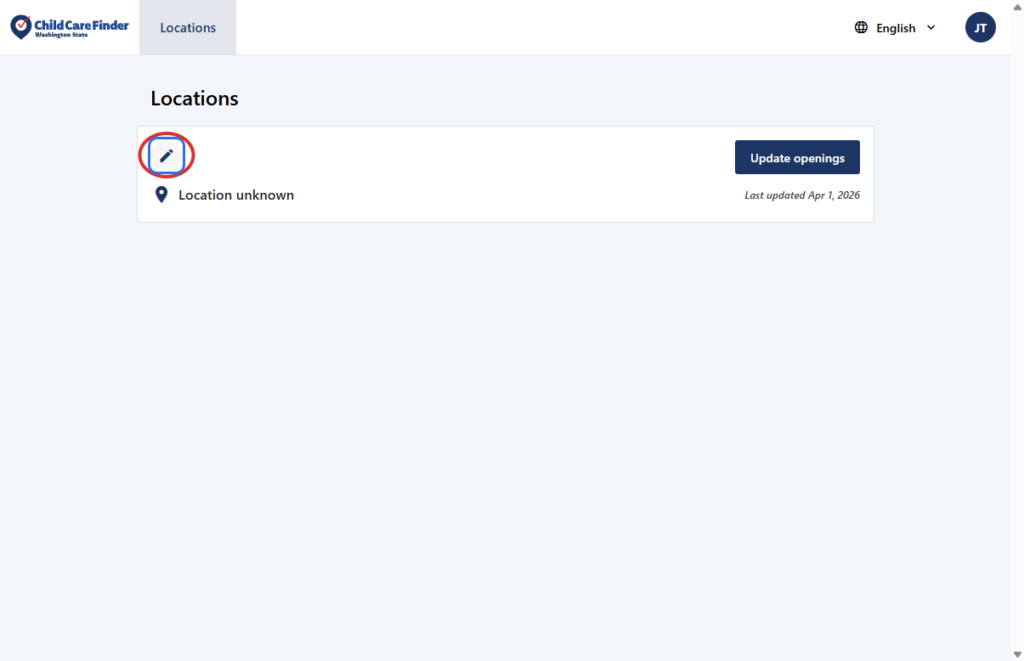
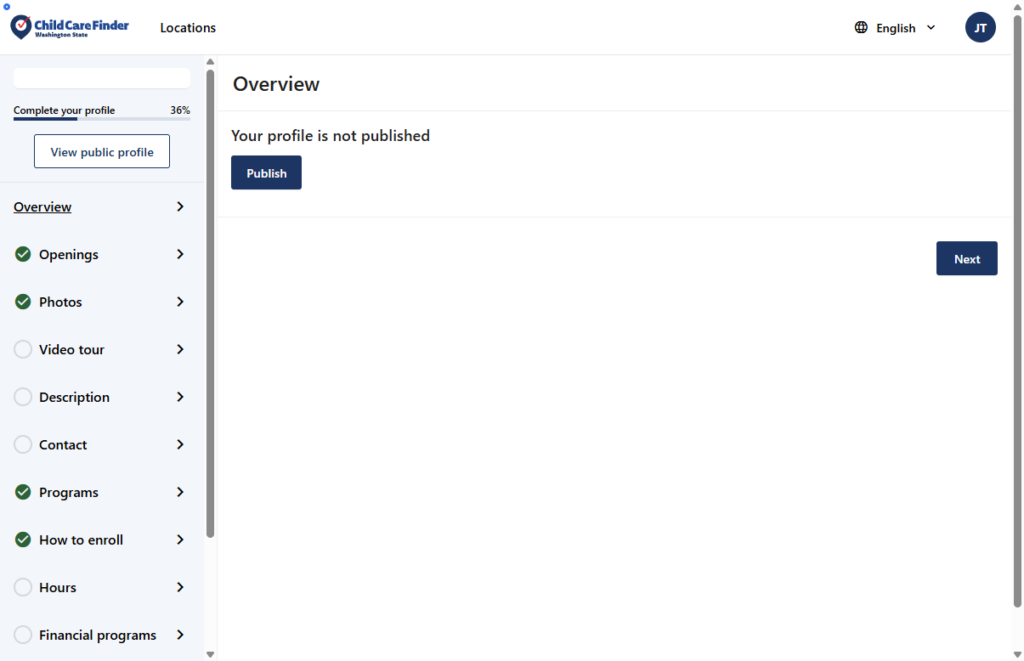
9. This page is where you’ll choose to Publish your profile, resulting in this profile appearing in the search for families looking for care.
Privacy Policy
Your privacy and security matter to us. Child Care Aware of Washington only shares your information if you choose to opt in, so families may learn about your services. Your profile will remain private until you opt in to being listed.