
Update Openings in the Child Care Finder Provider Portal
This how-to guide gives step by step instructions on how to use the Child Care Finder Provider Portal. The purpose of this guide is to support providers navigating their own access, and for use by others who are supporting providers with technical assistance.
This guide is meant to include a detailed description of the steps to update program Openings. Openings are viewable by families, which makes it vitally important for providers to keep them updated to ensure families have clear and accurate information about what care is available to them.
Child Care Provider Portal

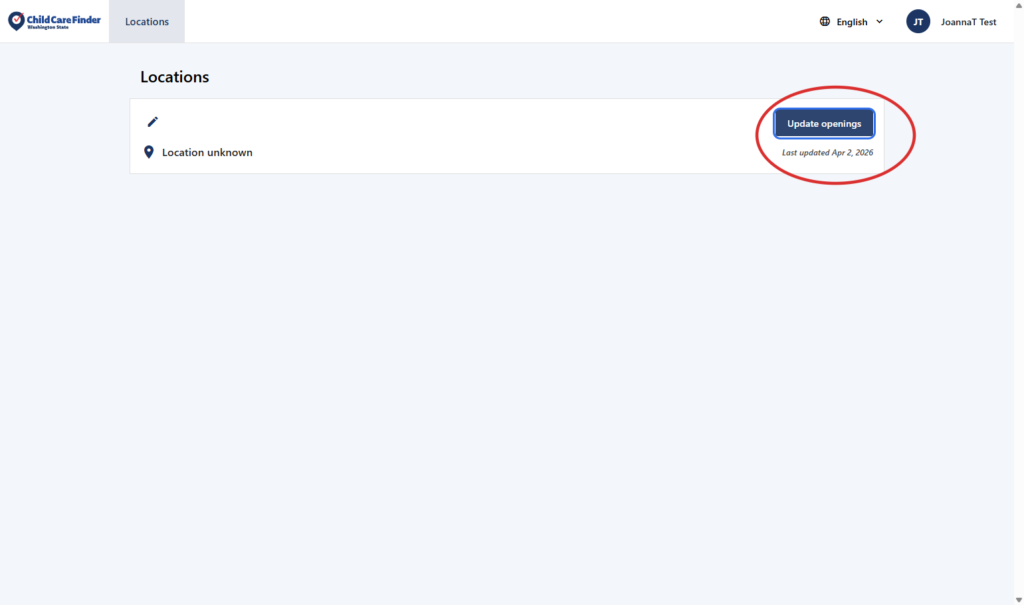
1. From this landing page, click on Update openings to go straight to the area where you can add or update openings for families to view that are looking for care.
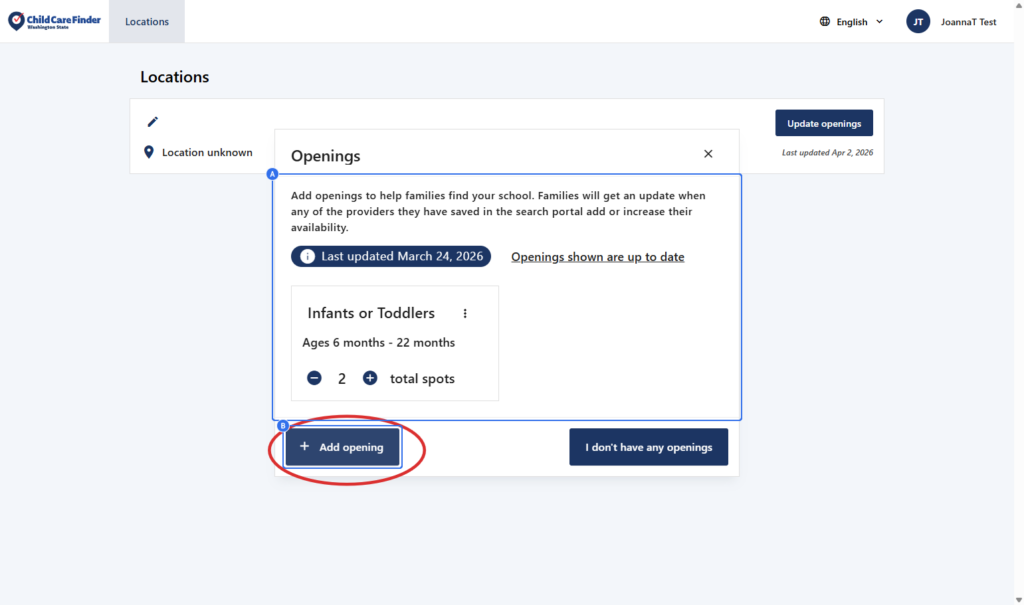
2. From this page, you can see the openings that may already be here on your profile, if you’ve reported vacancies (now called openings) to CCA of WA before. Or, you may not have any openings yet.
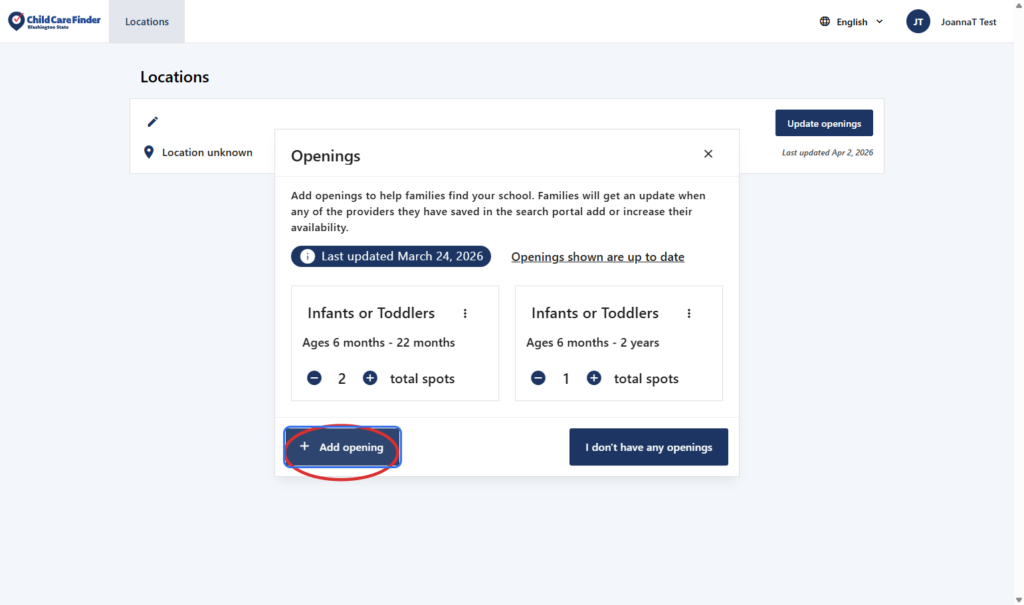
To add new openings, Click on Add opening
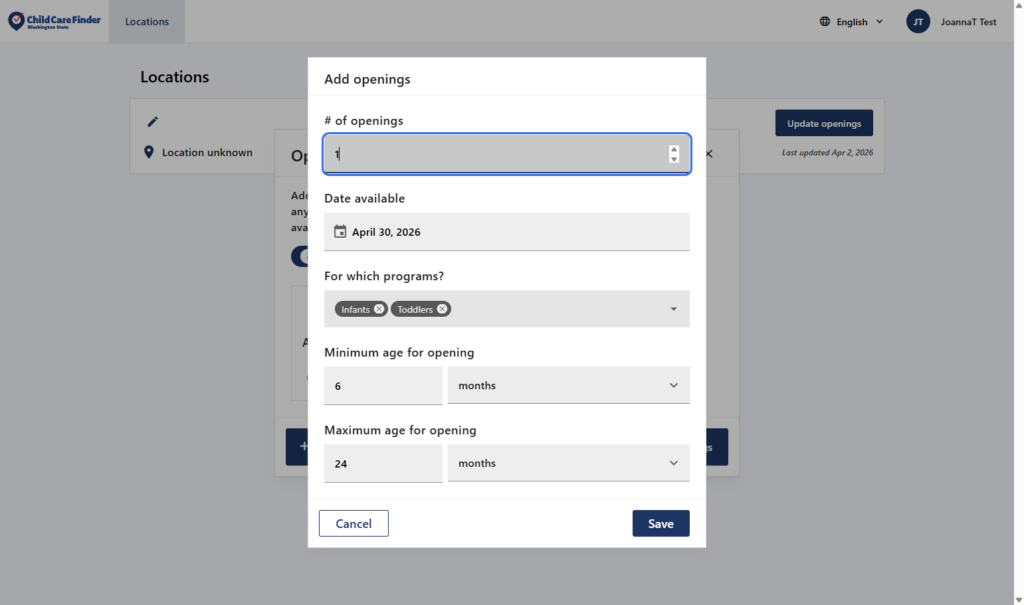
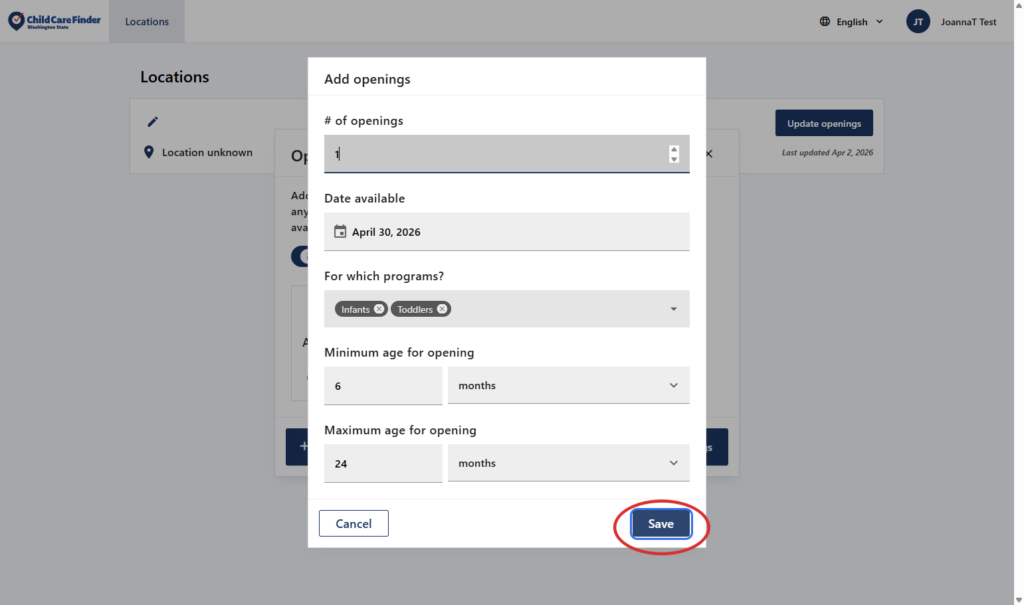
3. Type the number of openings that you’d like to add.
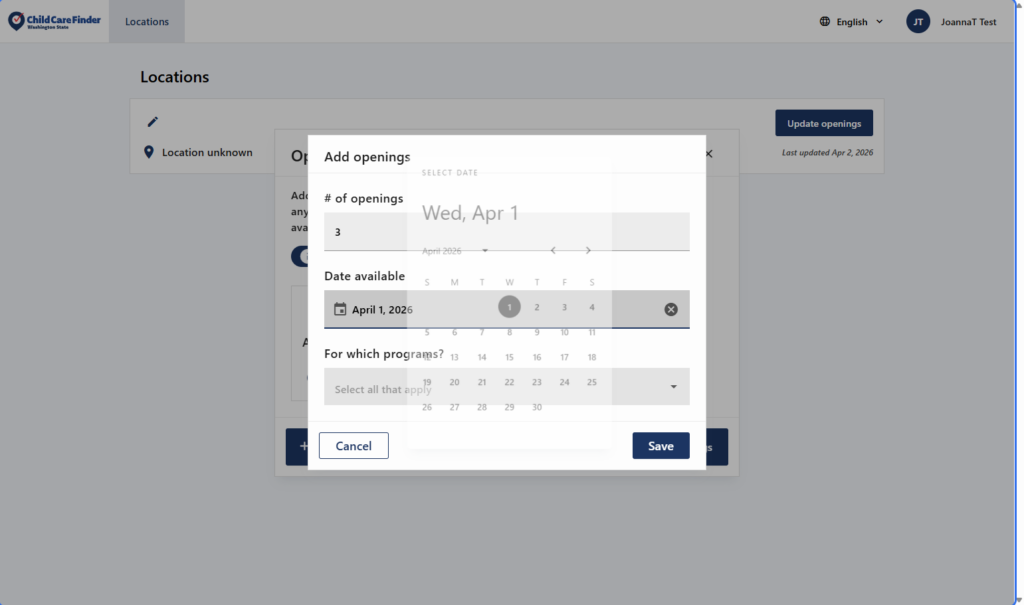
4. Selecta date for the Date Available.
This is especially important for openings that will become available in the future – families may be searching for care starting months or years in the future. If you will have an opening that matches their future need, they’ll be able to find you. If you’ve listed an opening a long time ago with a “Date Available” that is now far in the past, the family will be able to view that date. For this reason, it’s important to keep this field accurate and up to date.
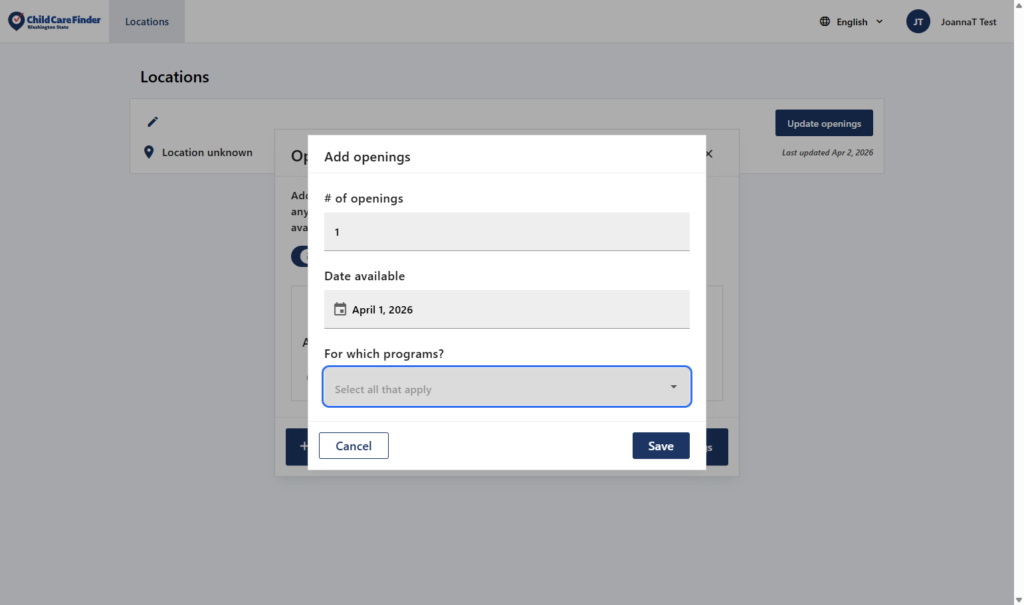
5. Click on the dropdown called “For which programs?” to select the age groups these openings apply to.
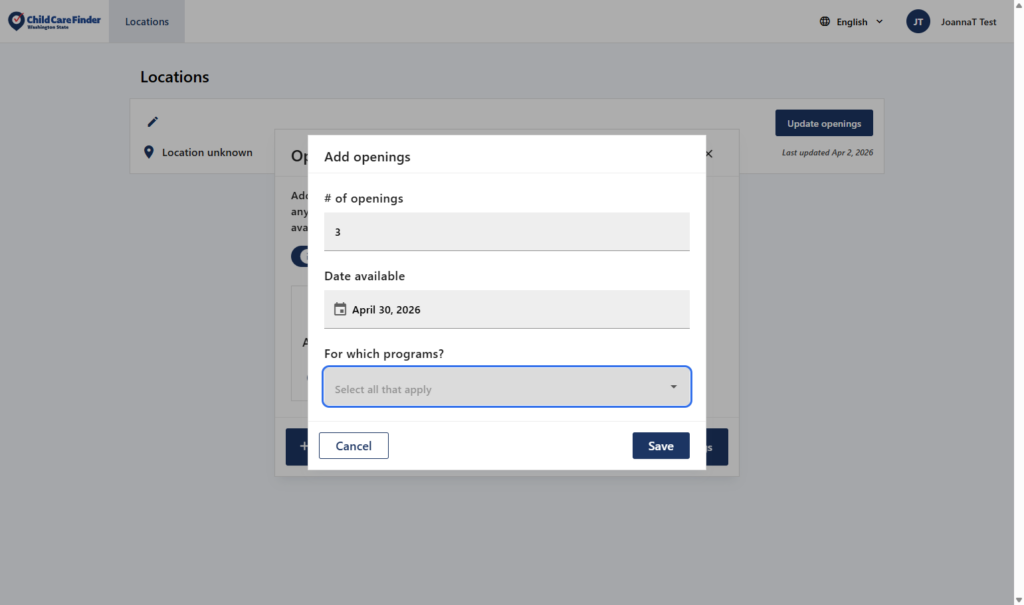
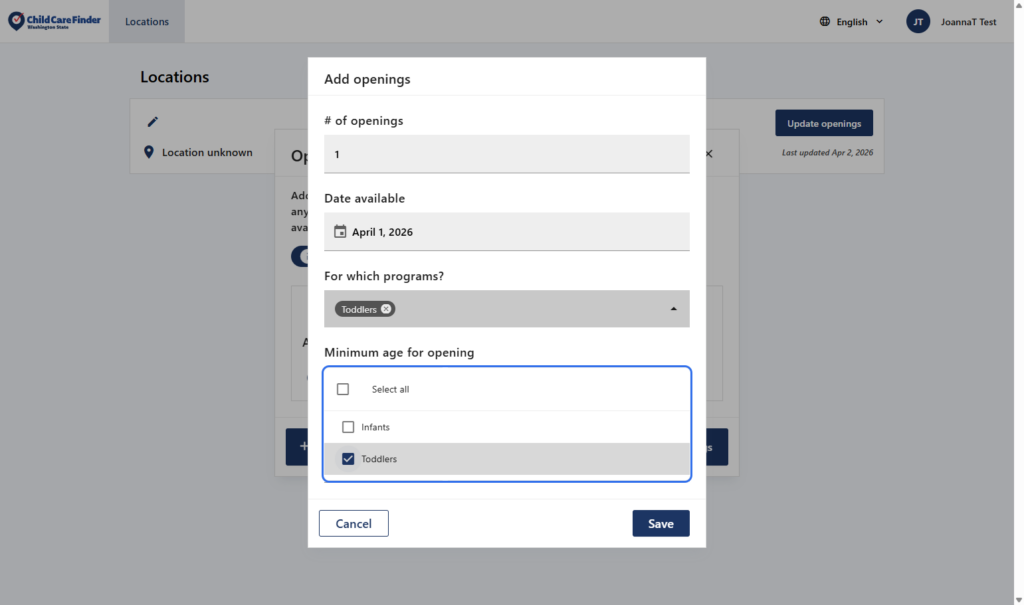
6. Select an option . You’ll only see age groups here that this location is licensed to serve. You may select one or multiple age groups.
When selecting age groups, you’re indicating the ages of children you are able to enroll in these openings. If all your openings are available to all age groups, you can enter all your openings at once and select all age groups here. If you have some openings that are available to multiple age groups, but others that are restricted to only one age group, you would enter them separately.
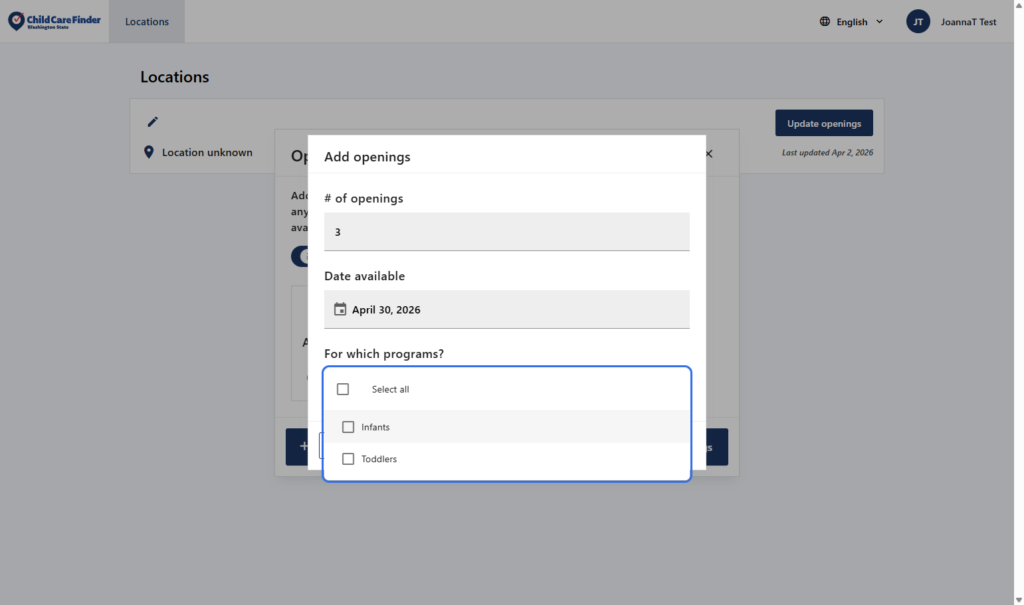
7. Select an option
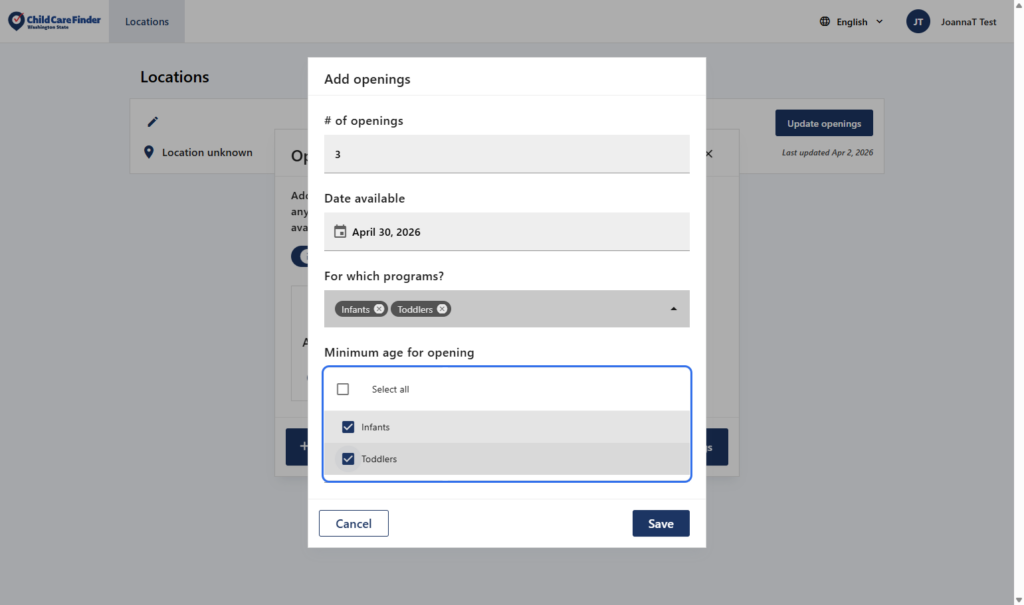
8. You may edit the age minimum or maximum that you’d like to enroll in these openings.
This is optional, if you’d like to fill these openings with only children from a more limited age range within the age groups you selected (for example, only Infants 6 Months or over).
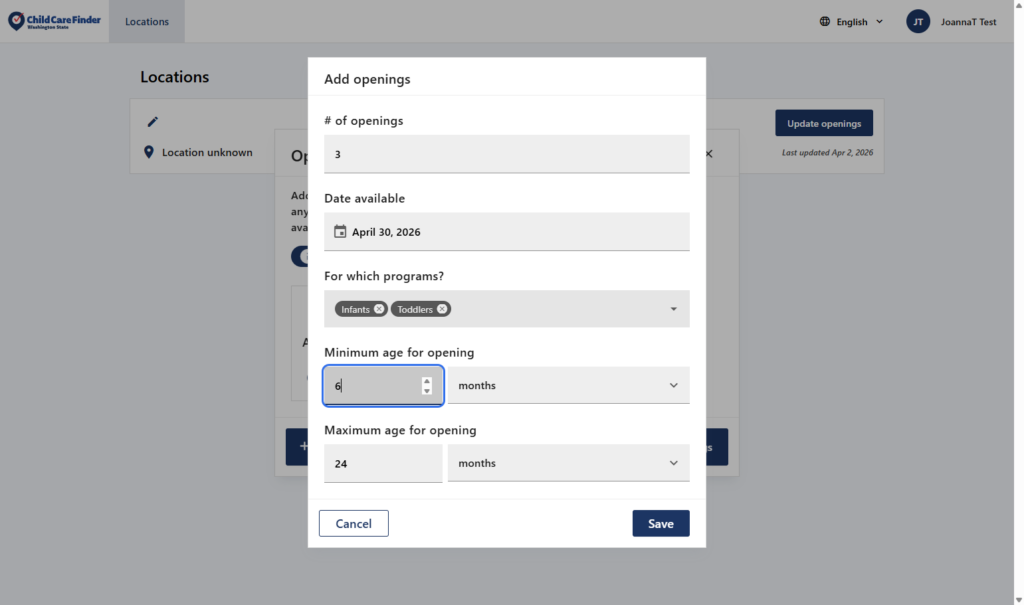
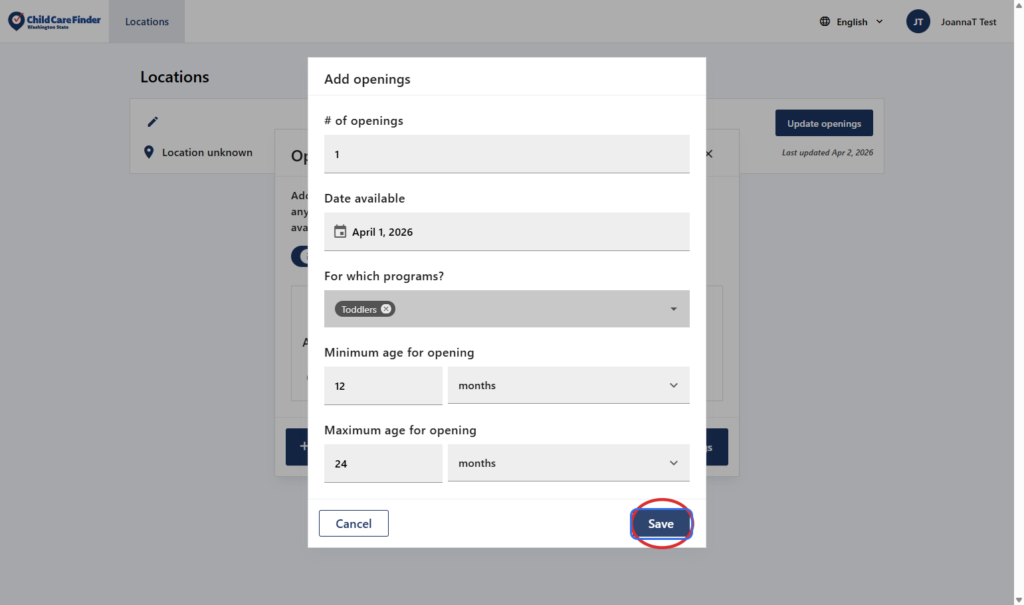
9. Click on Save
10. Here’s another example: Let’s add another opening that is open to different children than the last one. Click on Add opening
11. Click the dropdown called “For which programs?” to select the age groups.
12. Select an option.
This opening is only available to toddlers, not infants.
13. Click on Save
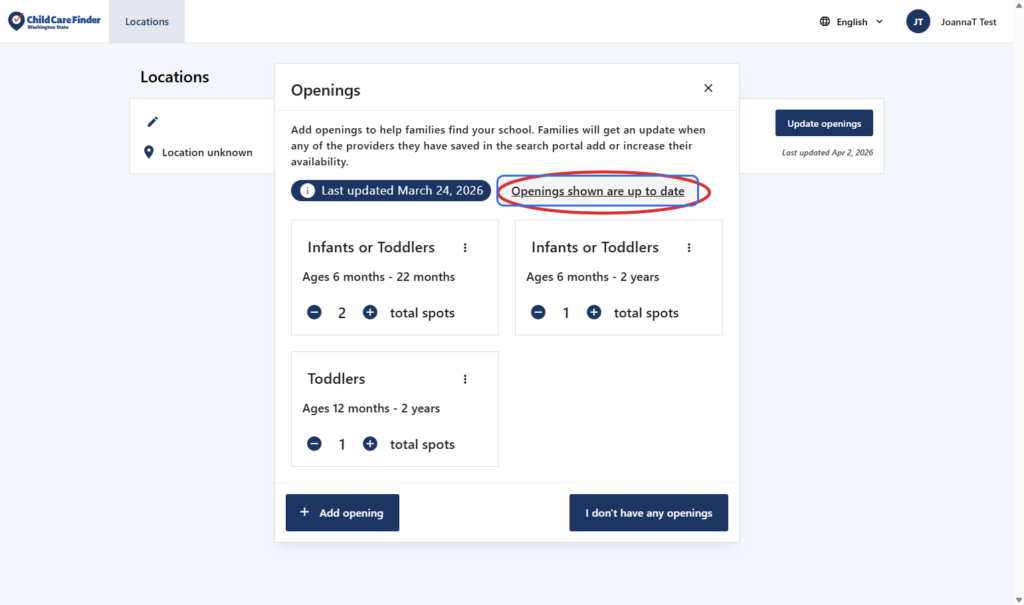
14. If you don’t need to add or update the openings but you want to indicate that you’ve reviewed them and they are still accurate, click on “Openings shown are up to date”
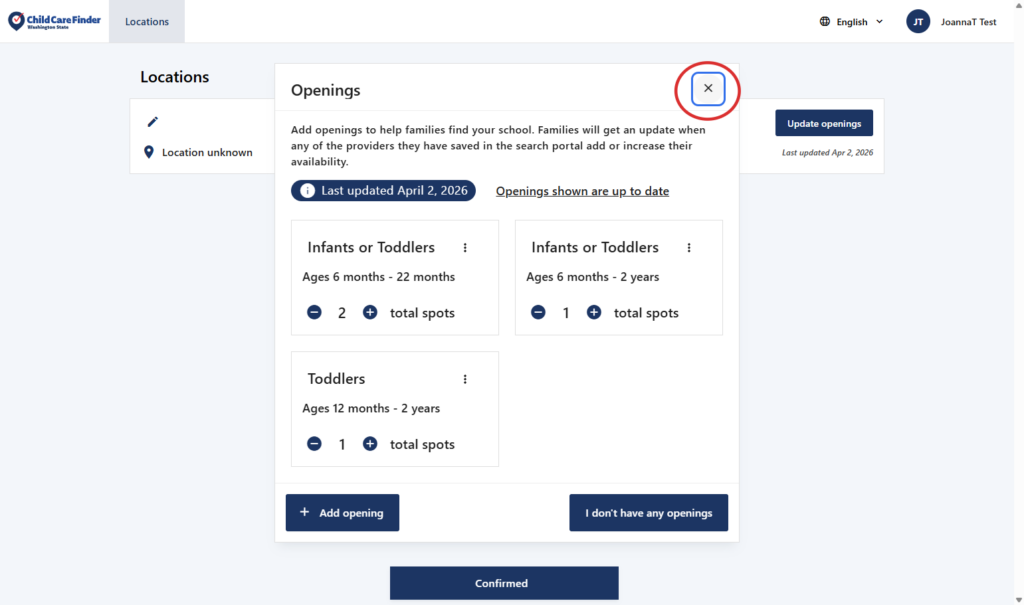
15. When you’re done, click on the X to close the page.
Privacy Policy
Your privacy and security matter to us. Child Care Aware of Washington only shares your information if you choose to opt in, so families may learn about your services. Your profile will remain private until you opt in to being listed.